
Indian River County Case Search helps users find available court case information through an online court search portal. Users may look for a case using a case number, party name, attorney name, or another available detail. A case number often produces the most accurate result. Still, name-based searches can help when the case number is unknown. The court case lookup system may show basic details for public cases. Search results can vary based on the case type and record availability.
An online case search may display the case number, filing date, case category, and party names. It may also show the court division, current case status, docket activity, or limited hearing information. Some records may not appear in the court search portal due to public-access rules. Sealed, confidential, juvenile, or protected matters can have limited online details. Users should compare names, filing dates, and case details before selecting a result. This helps them identify the correct case information and avoid confusion with similar records.
Search Indian River County Court Cases Online
Indian River County Case Search can be started through the Indian River County Court Online Case View page. A user can select Guest for public case information or choose Registered User when registration-based document viewing is needed.
Steps to Search Indian River County Court Cases
- Open the official Online Case View page: https://indianriverclerk.com/court-records/online-case-view/
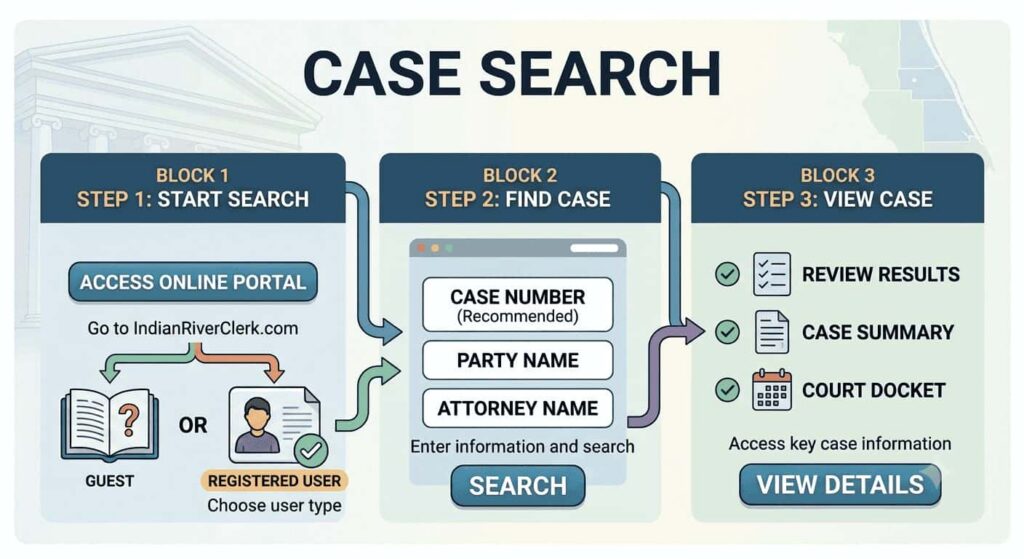
- On the Online Case View screen, two options appear:
- Registered Users
- Guests
- Select Guests if the user only needs to view available public court case information.
- Select Registered Users if the user already has an account or needs registration-only document images.
- After selecting Guests, the court search system opens.
- Choose the available search method from the search screen. The portal may allow searches by:
- Case number
- Party name
- Attorney name
- Case type
- Other available case details
- Enter the known information carefully. A case number gives the most accurate result. If no case number is available, enter the person’s full name or business name.
- Select the Search button to view matching cases.
- Review the results and compare:
- Case number
- Party names
- Filing date
- Case type
- Case status
- Open the correct case to view available public details. The page may show court dates, charges, sentences, complaints, parties, and docket activity.
Search Indian River County Cases by Name
A search by name helps users locate a court case when the case number is not available. The online case search system allows party-name lookup so users can find related court records using a person’s or business name. This method often returns multiple matches, so careful review helps identify the correct case.
Enter a Party Name Correctly
A correct name entry improves search accuracy and reduces unrelated results. Users should enter the name exactly as it appears on legal documents such as court notices, filings, or citations.
In many cases, the system works better when users follow these methods:
- Enter the last name first, followed by the first name
- Use full legal spelling whenever available
- Try middle initials if the system allows
- Test alternate spellings for uncommon names
- Include business names for company-related cases
A party name search may include results for plaintiffs, defendants, petitioners, respondents, or attorneys. Because of this, name variations can appear across multiple records.
Identify the Correct Case From Similar Results
Name-based searches often show more than one result, especially for common names. Users should carefully compare each entry before selecting a case.
Key details that help identify the correct record include:
- Case number
- Filing date
- Party names listed in the case
- Case type (civil, criminal, family, etc.)
- Current case status (open, closed, pending)
Matching these details together reduces confusion when multiple cases share similar names. A small difference in filing date or case type often separates unrelated records.
Improve a Name Search With Available Filters
Some court search systems provide filters that help narrow large result lists. These filters improve accuracy when a name search returns too many entries.
Common filtering options include:
- Date range filter to narrow results by filing year
- Case type filter such as civil, criminal, or traffic matters
- Party role filter like plaintiff, defendant, or respondent
- Court division filter for specific court sections
Using filters helps refine results and saves time when searching through multiple matches. A combination of name entry plus filters often produces the most accurate court case lookup results.
Find a Court Case by Case Number
A search by case number is usually the fastest way to locate a court case. Since each court file has its own number, this method helps users avoid unrelated results that can appear during a name search. Users should enter the court file number exactly as it appears on official paperwork. A small error in the filing year, letters, dashes, or number order can prevent the search portal from showing the correct result.
Where to Find a Case Number
A case number is often printed near the top of court paperwork. Users can check documents such as:
- Legal notices
- Hearing notices
- Traffic citations
- Filed court documents
- Attorney emails or letters
- Previous court orders or paperwork
The number may appear beside labels such as Case Number, Case No., Court File Number, Docket Number, or Case ID. Copying the full number before starting a case number lookup can reduce typing mistakes.
Check the Case Number Format Before Searching
A court file number can include a filing year, letters, numbers, and separators. The search portal may require the same format used on the original notice or court document.
Before submitting the search, users should check:
- The filing year is correct
- All required letters and numbers are included
- Dashes appear in the correct place, if required
- No digits are missing
- No extra spaces appear before or after the number
What to Try if a Case Number Search Does Not Work
A failed case ID search does not always mean the case is unavailable. The user can first check the number against the original document and confirm the correct filing year.
If the result still does not appear, users can try:
- Entering the number without dashes or spaces
- Checking the selected county or court system
- Reviewing letters and digits for typing errors
- Using a party-name search if the case number is incomplete
Use Party Search to Find Related Case Information
A party search can help users find a court case when they know one person or organization connected to it. This option is useful when the case number is unavailable and the person’s role in the case is known. A party search differs from a basic name search because it focuses on the person or business listed in the case. Users should review the party role in each result, since the same name may appear in several unrelated matters.
Search by Plaintiff, Defendant, Petitioner, or Respondent
A person can appear under different party roles based on the type of case. For example, a plaintiff starts many civil cases, and a defendant responds to a claim or criminal charge. In family or probate matters, the court may use terms such as petitioner and respondent. A petitioner starts the filing, whereas a respondent is the other party named in the case. Users should check the listed role before opening a result.
Common party roles include:
- Plaintiff — person or business that starts a civil claim
- Defendant — person or business responding to a claim or charge
- Petitioner — person who files a petition with the court
- Respondent — person required to respond to a petition
Search Cases Linked to a Business or Organization
A business case search can help locate cases involving a company, agency, association, or other organization. The business may appear as a plaintiff, defendant, claimant, petitioner, or respondent. Users should enter the full legal business name when possible. For better results, they can check contracts, invoices, legal notices, or state business records for the correct company name. If no result appears, users can try a shorter version of the name or remove terms such as “LLC,” “Inc.,” or “Corp.”
Case Search Results
Case information helps users confirm whether they selected the correct court record after completing a search. A result page may show the case number, filing date, case status, party names, attorneys, and available docket entries. Users should compare several details before relying on a result. A matching name alone may not identify the right court case, especially if the search shows common names or several related matters.
Case Number and Filing Date
The case number is the main identifier for a court file. It can help separate one case from another, even when the same parties appear in more than one record. The filing date shows when the court first received or opened the case. Users can compare this date with notices, citations, legal paperwork, or attorney communication. A different filing date may show that the result relates to another case with a similar name.
Case Status
The case status shows the current stage of a court file. Status labels can vary by court system, yet most labels have a simple meaning.
| Case Status | What It Usually Means |
|---|---|
| Open | The case remains active and has not reached a final result. |
| Pending | The court still has an issue, filing, hearing, or decision to address. |
| Closed | The case has reached an ending and is no longer active. |
| Disposed | The court has entered a final outcome, such as a judgment, dismissal, plea, or other resolution. |
| Dismissed | The court ended the case without continuing it to a final hearing or trial. |
| Reopened | The court returned a previously closed case to active status. |
Party Names and Case Participants
Court case details may list the people, businesses, attorneys, and other participants connected to the file. The listed names can include a plaintiff, defendant, petitioner, respondent, claimant, attorney, or government agency. A party name can help confirm a record, but it should not be the only detail used. Users should compare the name with the case number, filing date, case type, and status. This helps prevent confusion between people with the same or similar names.
Docket Entries and Recent Updates
Docket entries are dated updates added to the court file. They can show case activity that has been recorded by the court.
Available docket entries may include:
- Filed complaints, petitions, motions, or responses
- Hearing notices and scheduled court dates
- Court orders and judgments
- Attorney appearances or withdrawals
- Case status changes
- Other recorded case activity
Check Case Status and Hearing Information Online
A case status shows the current stage of a court case, and hearing information can show future court events when public details are available. Users can find both items by opening the correct case result in the Indian River County case search system. The case result page may show a status field, recent case activity, and dated docket entries. Users should check the latest entry before relying on a hearing date, since court schedules can change after a new filing or court order.
How to Check a Current Case Status
After selecting a case from the search results, users should look for the Case Status field. This field may show whether the case is open, pending, closed, disposed, dismissed, or reopened. The latest docket entry can provide more current case information. For example, a recent entry may show that the court set a hearing, entered an order, received a motion, or closed the case.
Users can review these details to find the current stage of a case:
- Case status shown on the case page
- Most recent docket entry
- Date of the latest court activity
- New filings or court orders
- Future event or hearing notice, if listed
A case marked open may still have no scheduled hearing. A case marked closed may still show older hearing details, so users should check the most recent update.
How to Find a Scheduled Hearing
A scheduled hearing may appear in the case details or within the docket entries. Users should look for entries that mention a hearing, court event, calendar date, notice, or order setting a hearing.
When available, hearing details may include:
- Hearing date
- Start time
- Courtroom or hearing location
- Hearing type
- Assigned judge
- Case event description
A hearing entry may use short labels, such as status hearing, motion hearing, pretrial conference, arraignment, or final hearing. The exact wording can depend on the case type and court division.
Why Hearing Details May Change
Court hearing information can change after the court updates the case file. A judge may reschedule a hearing, continue it to another date, cancel it, or enter a new order. Users should check the case search portal again close to the hearing date. They should also review the newest docket entry, since it may show a changed court schedule or updated hearing details.
When a Case Search Does Not Show Needed Information
A case lookup may not show the needed result if the search details are incomplete, incorrect, or limited by public-record rules. Users can try another search method, check entered details, or use the related court resource that fits their need. A missing result does not always mean that a court case does not exist. The online database may have delayed updates, restricted details, or limited public case information.
Try Another Search Method
A user can switch search methods if the first attempt does not return a match. For example, a case number search may fail if one digit is missing or the number format is incorrect.
Users can try:
- Searching by the party’s full name
- Using the last name only
- Trying a plaintiff, defendant, petitioner, or respondent search
- Entering an attorney name, if available
- Using a filing date or case-type filter, if shown in the portal
Check for Spelling or Formatting Errors
Small entry mistakes can affect court search results. Users should compare the entered details with a court notice, citation, filing, or other legal paperwork. Common issues include a missing middle initial, alternate name spelling, incorrect case-number digit, wrong filing year, or extra spaces. Users should also check dashes, letters, and number order before searching again.
Limited Online Case Information
Some case details may not appear in the online database. Privacy rules can limit public viewing for confidential, sealed, juvenile, adoption, mental-health, or protected records. Recent filings may take time to appear after court staff enter the case. In other situations, the portal may show basic case details but not document images, full docket text, or hearing information.
Use the Appropriate Related Resource
Users who need a certified copy or court document can visit the Indian River County Court Records page. That page covers document-related options without repeating the case search process. For office services or official help, users can visit the Indian River County Clerk of Court page. For general court details, court divisions, and local court information, users can visit the Indian River County Court page.
Location and Contact Details
Users can contact the Indian River County Clerk of the Circuit Court & Comptroller for public case-search help, case-status questions, and online portal issues. Keep the case number, party name, and filing year ready before calling or visiting.
| Contact Detail | Information |
|---|---|
| Address | Indian River County Courthouse, 2000 16th Avenue, Vero Beach, FL 32960 |
| Phone Number | (772) 226-3100 |
| clerk@indianriverclerk.com | |
| Office Hours | Monday–Friday, 8:00 AM–5:00 PM; closed on weekends and court holidays |
Frequently Asked Questions
Indian River County Case Search helps users find available public court case details online. The answers below explain how to search by case number or name, review case information, and check the current status of a selected court file.
How Do I Search for a Case in Indian River County?
Users can start by opening the official Indian River County online case search portal. They can search with a case number, party name, attorney name, or other details shown in court paperwork. A case number usually gives the closest match. If that number is unavailable, users can enter the full name of a plaintiff, defendant, petitioner, respondent, or business. After the search results appear, users should compare the case number, filing date, party names, and case type before selecting a record.
Can I Search Indian River County Court Cases by Name?
Yes, users may search Indian River County court cases by name when a case number is not available. They should enter the name as it appears on a court notice, citation, filing, or other legal document. A name search can return several matches, especially for common names. Users should check the listed party role, filing date, case type, and current case status. Trying the last name first, a middle initial, or an alternate spelling can help narrow the results.
What Is the Best Way to Find a Court Case?
A case number search is usually the most accurate method. Each court file has its own number, so this search can reduce unrelated results and help users locate the correct record faster. A name search is useful if the case number is missing. Users can search by a party name, attorney name, or business name. They should then compare all available case details before opening a result, since names alone may match more than one court file.
What Information Can I See in a Case Search Result?
A selected case result may show public case information such as the case number, filing date, case type, party names, attorneys, and current case status. It may also show available docket entries and limited hearing information. The details shown can vary by case type and public-record rules. Some records may have restricted information, delayed updates, or unavailable document images. Users should review the newest docket entry and the latest case activity when checking a current court matter.